The odontogram
Treatment Roomthe patientOdontogram
Medical AssistantDoctorMedical Coordinator
The odontogram shows the patient’s teeth and everything noted on them: caries, fillings, crowns, missing teeth. It is the first tab of the patient’s screen for the medical team, and Digiodent saves each tap straight away.
Note caries
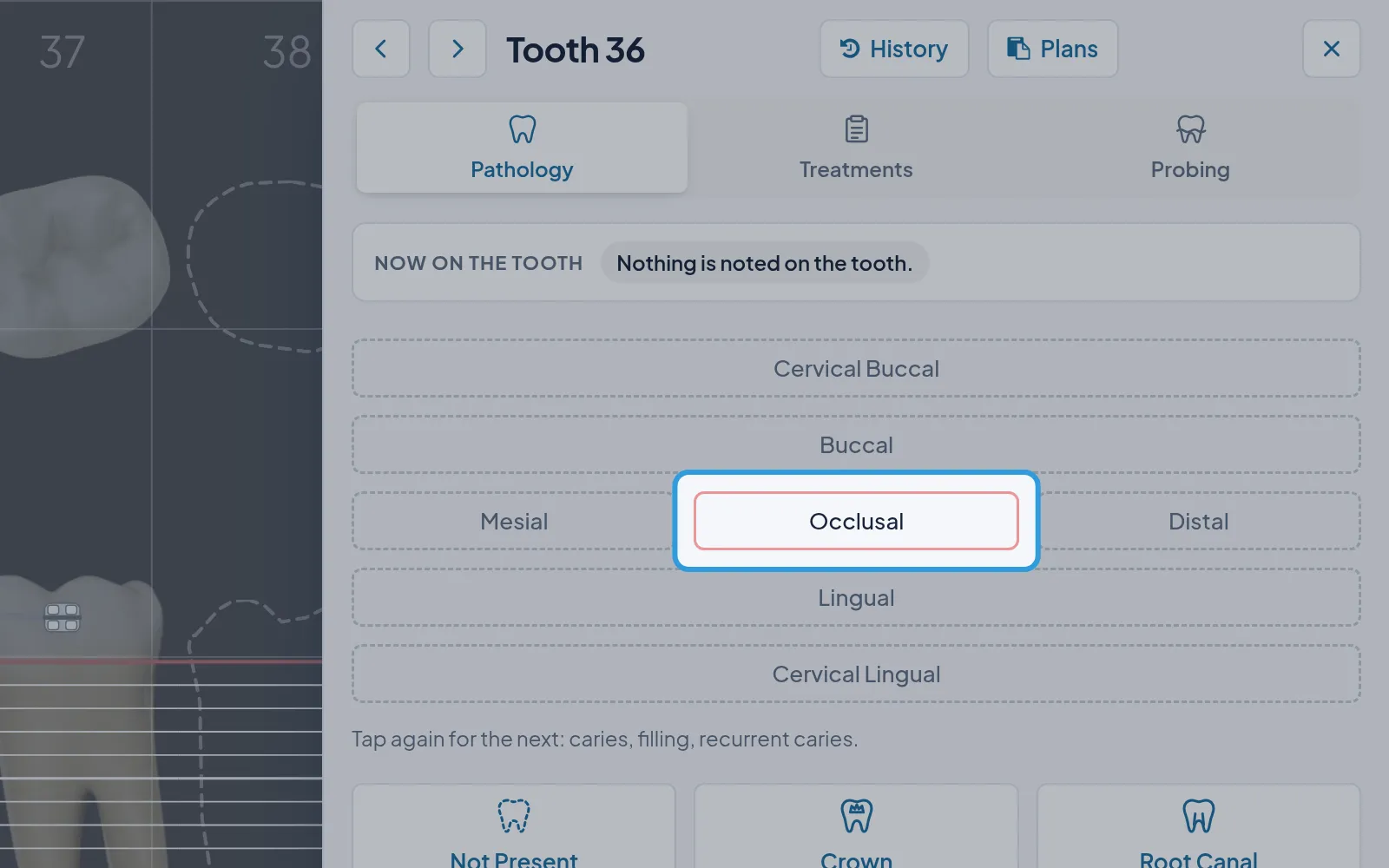
Section titled “Note caries”Now on the tooth shows the caries and its surfaces. Another tap on the same surface notes a filling, then recurrent
caries.
Note a crown, a missing tooth or another finding
Section titled “Note a crown, a missing tooth or another finding”- Tap the tooth, on the odontogram.
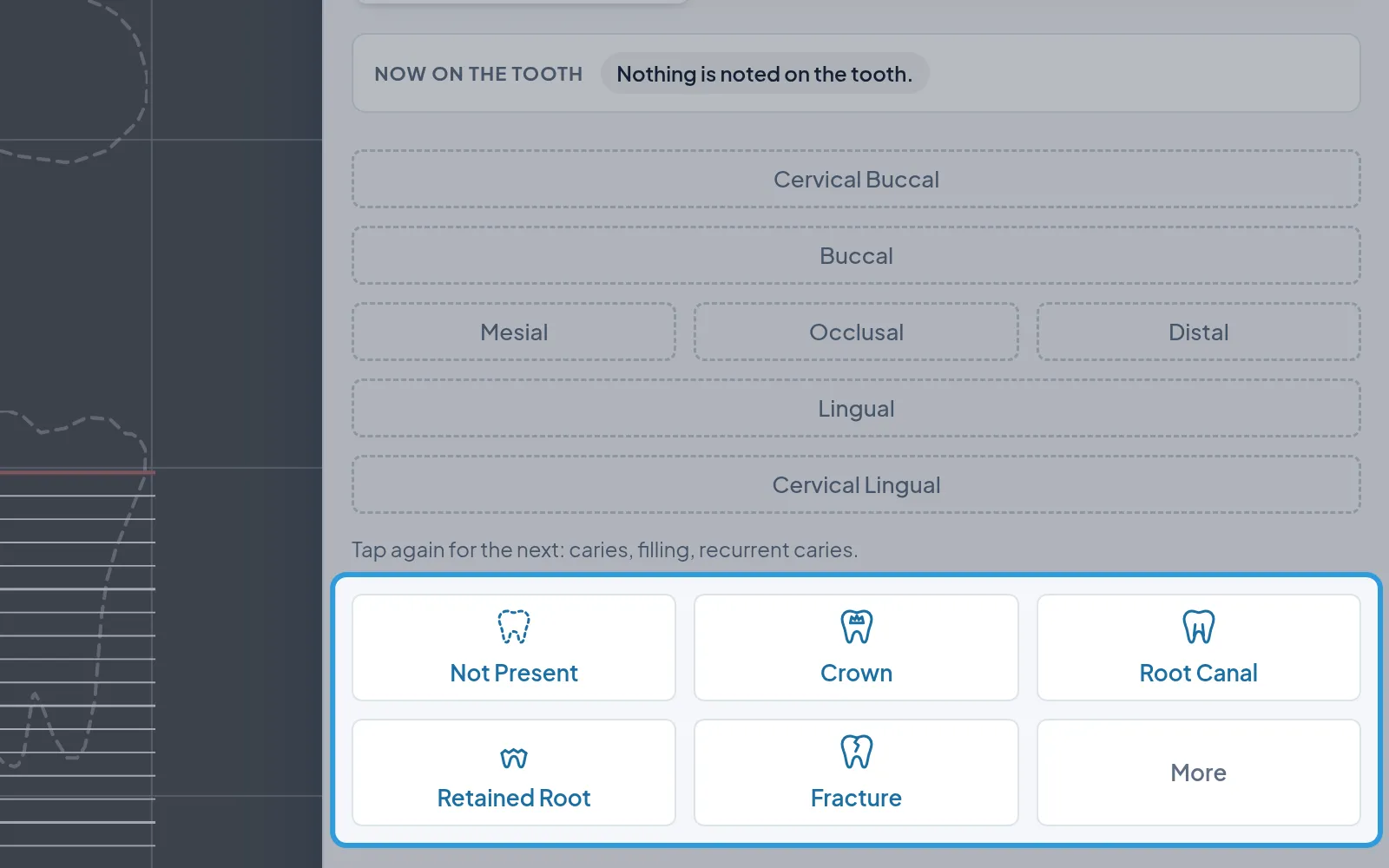
- Tap the finding:
Not Present,Crown,Root Canal,Retained Root,Fractureor, underMore, the others.
The finding shows in Now on the tooth and on the tooth’s drawing.
Note one finding on several teeth
Section titled “Note one finding on several teeth”The finding is noted on each tooth you tapped.
Take back a finding noted today
Section titled “Take back a finding noted today”- Tap the tooth, on the odontogram.
- Tap the finding again, until it leaves
Now on the tooth.
The finding taken back stays in the history, among the Voided findings. One from another day can no longer be taken
back: a treatment or a new finding changes it, for example No Pathology.
See a tooth’s history
Section titled “See a tooth’s history”- Tap the tooth, on the odontogram.
- Tap
History, at the top of the tooth’s panel.
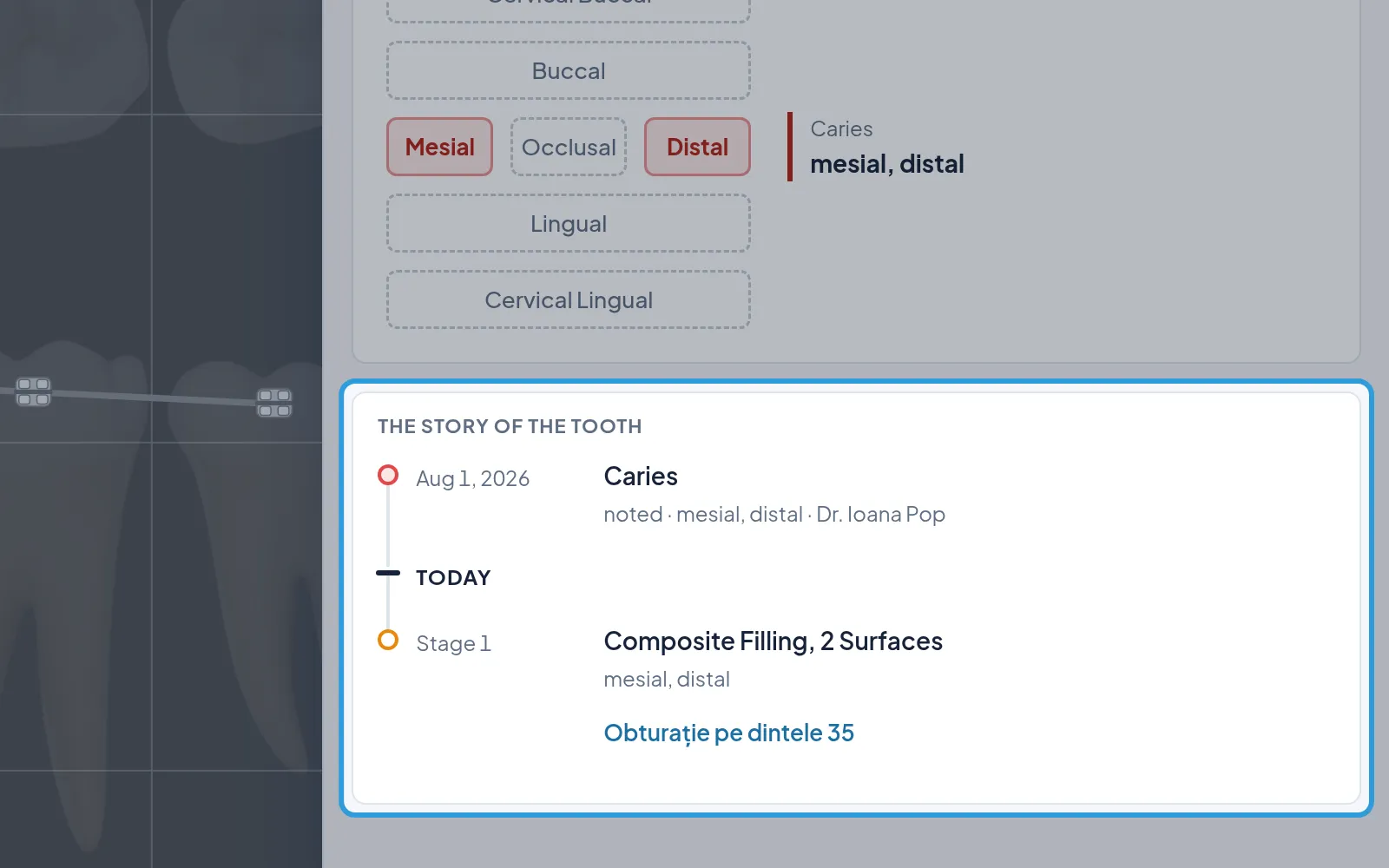
The story of the tooth shows, in order, what was noted and done on the tooth, then what the plans have next.