
Signing in
the clinic's Digiodent addressthe sign-in page
Everyone
You sign in with the email address your invitation was sent to, the password you chose and a code Digiodent sends you by email. The clinic administrator gives you the clinic’s Digiodent address.
Choose your password the first time
Section titled “Choose your password the first time”Digiodent signs you in with the password you chose. A password has at least 12 characters.
Sign in
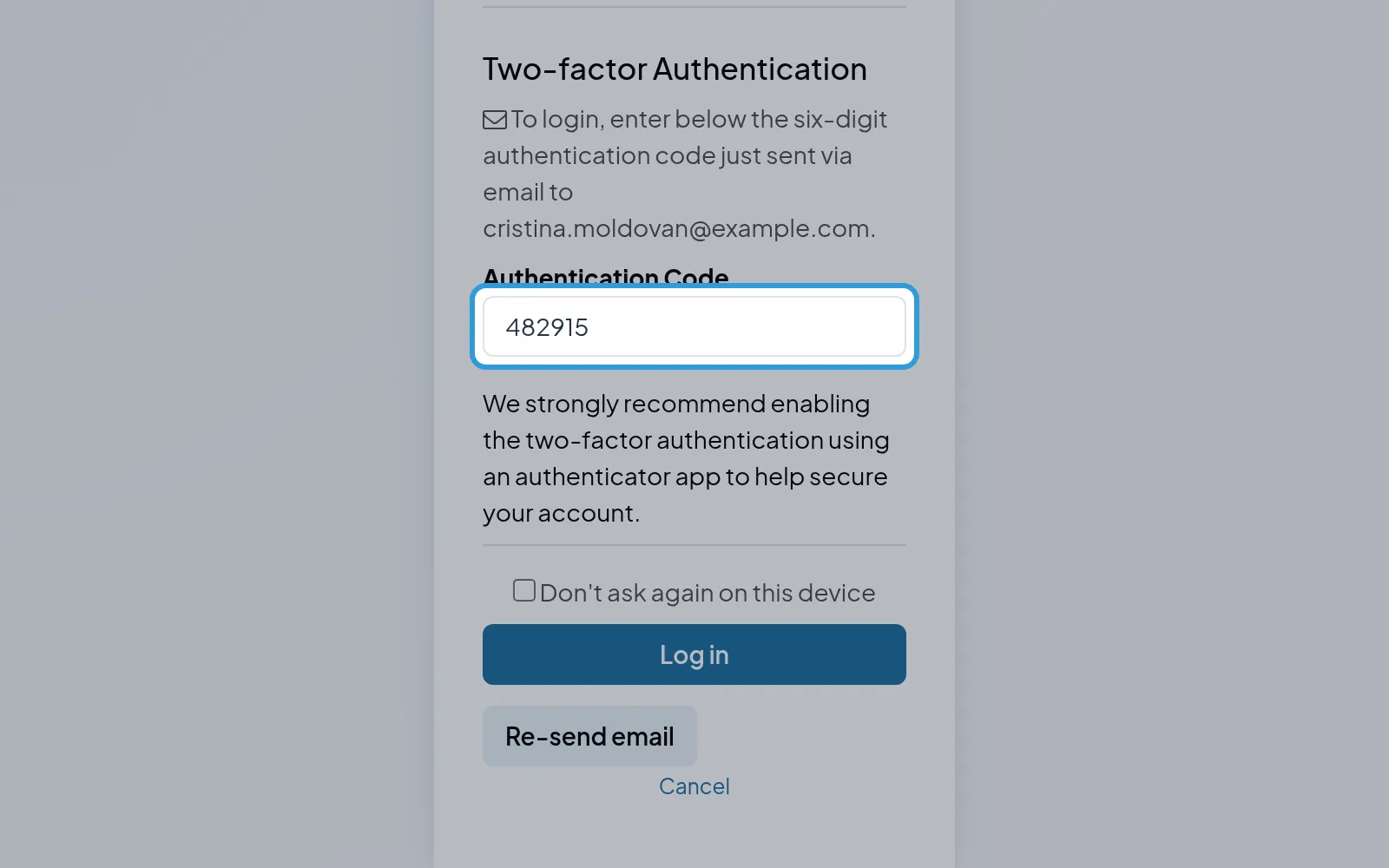
Section titled “Sign in”Digiodent sends you a six-digit code by email and asks you to type it.
Type the code sent by email
Section titled “Type the code sent by email”- Type the code you received by email in
Authentication Code. - Tap
Log in.
The home screen opens, with the apps of your role.
Confirm your access after a break
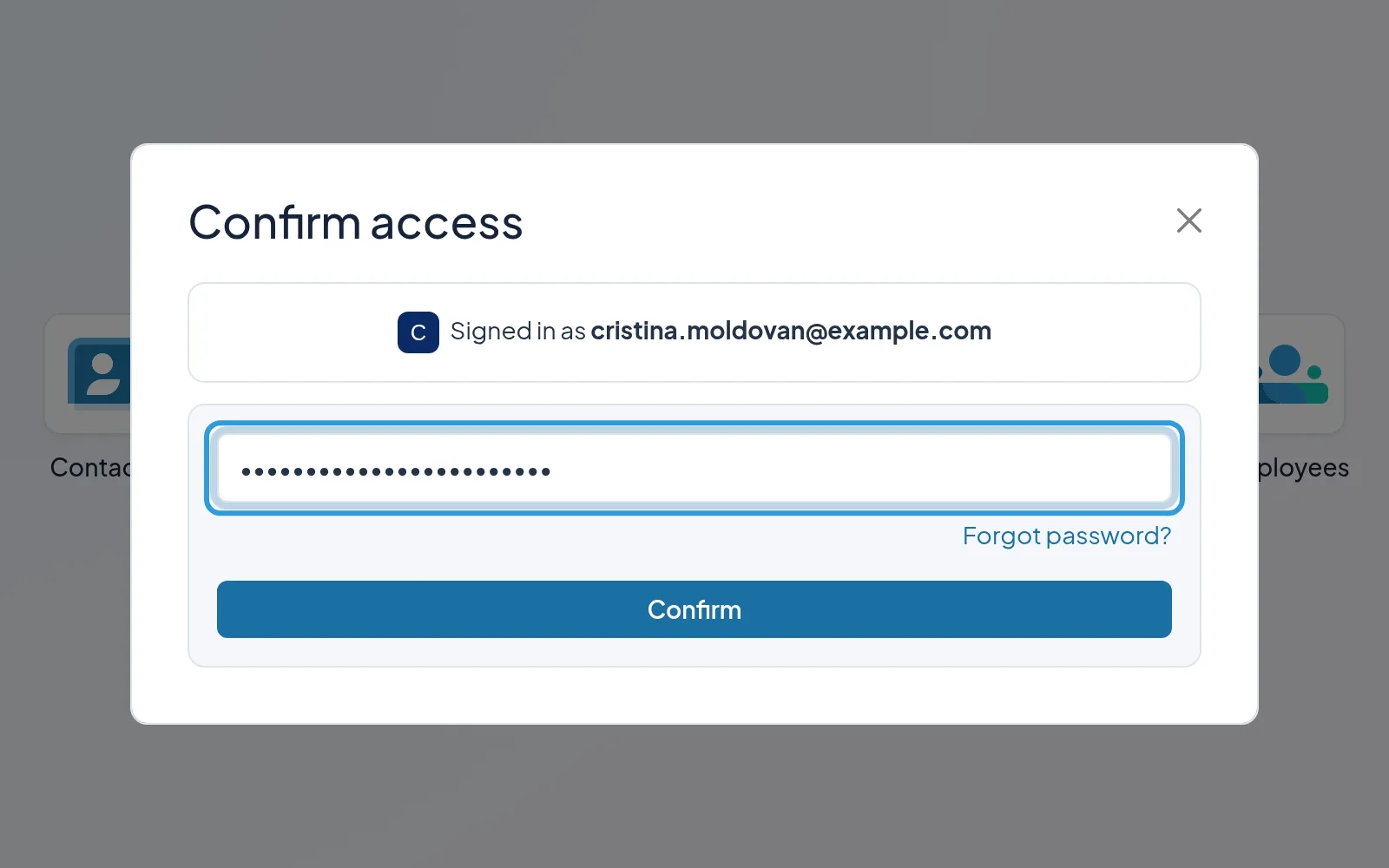
Section titled “Confirm your access after a break”- Type your password in the
Confirm accesswindow. - Tap
Confirm.
Digiodent takes you back to where you were.
Change your password
Section titled “Change your password”Digiodent signs you out: sign in again with the new password.