
The appointment
Appointments
Everyone
An appointment holds the day and time, the doctor, the patient and the services they come for. You book it straight in the doctor’s agenda, where you also move or cancel it.
Book an appointment
Section titled “Book an appointment”The appointment appears in the doctor’s agenda at the time chosen, as long as the services chosen.
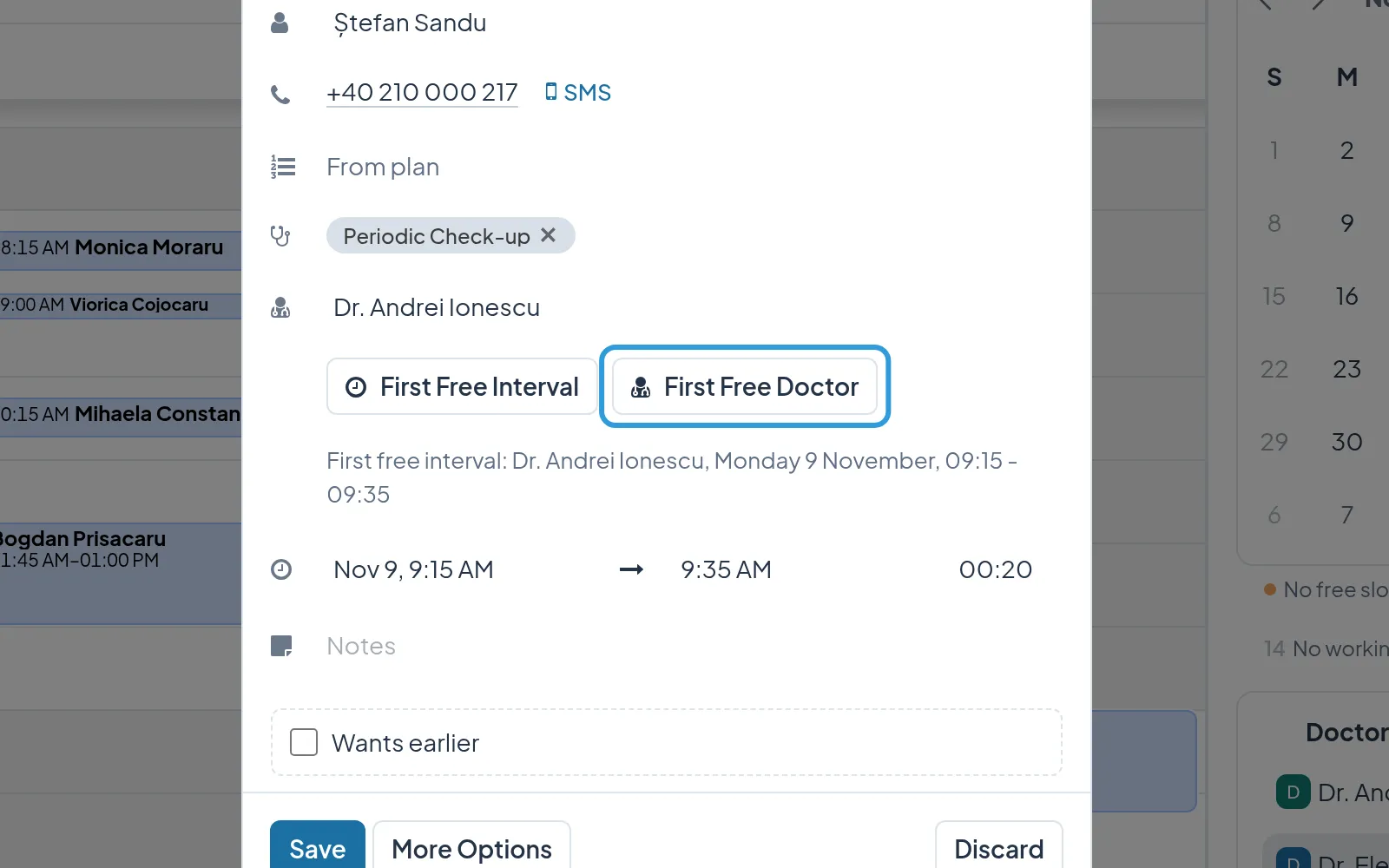
The New Appointment window has two tabs: With a time, the one above, and From the waitlist, with the patients on
the list who fit the time chosen. Tick Wants earlier before Save for a patient who would come earlier if a slot
frees up. See The waitlist.
Book at the first free interval
Section titled “Book at the first free interval”The interval found with the doctor chosen, within the next three weeks, appears under the buttons.
Book with the first free doctor
Section titled “Book with the first free doctor”- Tap
First Free Doctorinstead ofFirst Free Interval.
Digiodent looks at every doctor who does the services chosen and puts the doctor, day and time found in the appointment.
Move an appointment
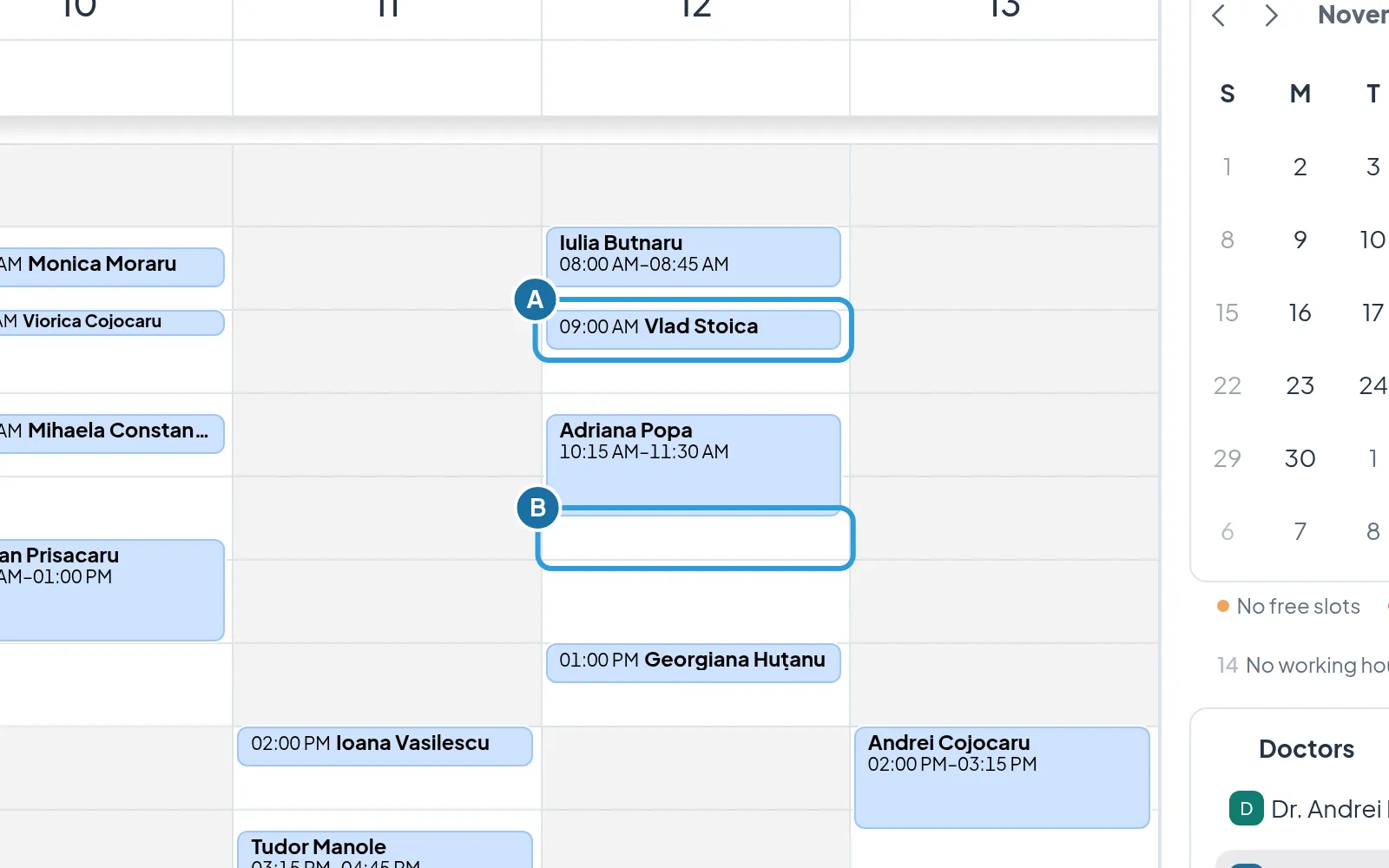
Section titled “Move an appointment”- Press and hold the appointment (A).
- Drag it to the new time (B), in a white area, and let go.
The appointment appears at the new time, with the same length and the same services.
Cancel an appointment
Section titled “Cancel an appointment”The appointment stays in the agenda, struck through, and its time is free again.
When someone on the waitlist fits the freed time, the Who Can Take the Slot window opens after the cancellation,
with the patients who can take it. See The waitlist.